Oda Scanner: Docs to PDF, OCR
0.0 30.09MB 0 Free
Version 1.0
Updated 2026-09-08
Developer YU HENG LIN


Description
Scan a document, and keep the words inside the file
Scan a document, and keep the words inside the file.

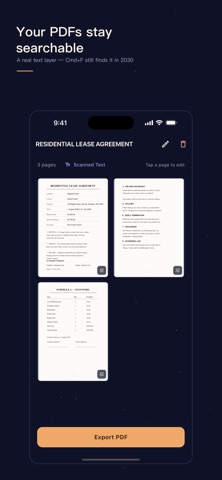
Oda turns paper into a PDF and puts an invisible layer of text into it. Three years from now, open that PDF on your computer, press Cmd+F, search for "deposit" — it still finds it.

Most scanning tools turn paper into a picture, and a computer cannot read words in a picture. Oda uses Apple's built-in text recognition to read every line on your iPhone and write it into the PDF's text layer. The file looks identical. It is now searchable, selectable, and indexable.

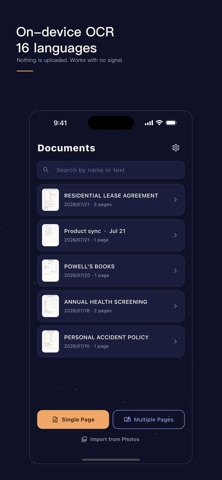
Recognition happens on your iPhone
Text recognition runs entirely on device using Apple Vision. No connection needed — it works on a plane. Sixteen languages are supported: English, French, Italian, German, Spanish, Portuguese, Chinese (Simplified and Traditional), Cantonese (both scripts), Korean, Japanese, Russian, Ukrainian, Thai and Vietnamese.

Search goes past the filename
The search box looks inside every document you have scanned. You remember the lease said something about a deposit, but not what you called the file — just search for "deposit".

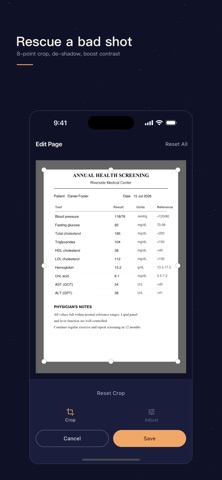
Rescue a bad shot
An eight-handle crop frame trims away the desk, your thumb, and the edges you did not want. Four filters handle the rest: original, sharpen, greyscale, black and white, with brightness and contrast on top.

Editing is non-destructive — the original is always kept, so you can undo any crop. But if you cropped to hide an ID number or an amount, you can choose to delete the cropped-away part permanently. Then it really is gone.

Single page and multi-page
For a receipt or a single notice, use single page. For a contract or a report, use multi-page: shoot the whole stack, sort it after.

What the free version does
Single-page scanning is unlimited. Multi-page scanning works twice. Your library holds five documents.

Once unlocked: unlimited multi-page scans, unlimited documents. No ads, no watermarks, and nothing of ours anywhere on the PDFs you export.

There are two ways to unlock, and both remove exactly the same limits: pay once, or subscribe yearly. If you would rather never think about it again, pay once. Nobody is pushed toward the subscription.

Where your documents live
On your iPhone. This app has no backend server, no account, and no sign-up. We cannot see your documents, and there is nowhere for them to go.

Two things worth knowing:
1. When you import from Photos, EXIF data — including the GPS coordinates of where the photo was taken — is stripped before the image is saved.
2. iCloud backup is optional and off by default. Turn it on and files go to your own iCloud storage, held by Apple. If you have Advanced Data Protection enabled in iPhone settings, not even Apple can read them.

When you copy recognised text, the clipboard clears itself after 90 seconds and never syncs to your other Apple devices.

Questions or problems: [email protected]

Terms of Use (EULA): https://www.apple.com/legal/internet-services/itunes/dev/stdeula/
Category: Business(160056)
Version: 1.0
BundleId: com.harveylin.twScanner
Developer: YU HENG LIN
Updated: 2026-09-08