A mark that says DRAFT is easy. A mark that carries the page number, the date and the filename — correct on every page, without you typing any of it — is not. That is what this is for.

Type it once with tokens in it. {page}, {total}, {date}, {time}, {year} and {filename} resolve per page as the file renders. Set the font, size, colour, opacity and angle, tile it at a spacing you choose, and watch it land on the page at exactly the size it will export. Save the setup as a named template.

WHAT IT DOES

• Three kinds of mark, one per export: a text label, your logo, or a QR code generated from any text or URL. Rotation and tiling apply to text and logo marks; the QR inspector offers opacity, scale and position only.
• Six tokens, resolved per page as it renders.
• Tile the mark at a spacing you set — tiles are laid from the bottom-left and any that would overrun the edge is skipped, so the field stops short of the margins.
• Or place it on a 3×3 grid of positions. Diagonal and Centre land in the same spot; the angle comes from the rotation control.
• Font, size 12 to 200, any colour, opacity 0 to 100 percent, rotation ±180°.
• Three presets — CONFIDENTIAL, DRAFT, DO NOT COPY — and your own setups saved as named templates.
• Batch Mode: drop more PDFs, or a folder, pick one of four naming rules, and run. It continues if a file fails.
• Fifty steps of undo.

WHAT YOUR MAC ALREADY DOES FREE

The free routes are better than people assume, so here they are properly.

Preview will put a text box on a PDF with Markup, and you place it exactly as you want it, seeing it on the page as you go. File ▸ Print ▸ PDF ▸ Save as PDF then flattens it permanently — no annotation left to select and delete — and keeps the document's text layer intact. For one file with one fixed word on it, that is the better tool and it costs nothing.

Automator ships a Watermark PDF Documents action. It runs over a whole folder and composites the mark into the page, so it cannot be picked off, and it keeps the text layer too. It does run blind — you supply artwork, build the workflow, and see the result after the file is written.

What neither will do is count your pages. There is no {page} of {total}, no date that fills itself in, no filename in the mark, and no tiled field at a spacing you set.

THE COST, AND IT IS A REAL ONE

This flattens the document. Every page becomes a 300 DPI image with the mark baked in. The exported PDF has no selectable text, its links stop working, its bookmarks and form fields are gone, and the file is substantially larger. A PDF that had been through OCR is no longer searchable afterwards.

Automator's action does not do that to your file. If document fidelity matters more than per-page marks, use it. That is the honest recommendation.

WHAT IT DOES NOT DO

• Every page gets the mark. There is no first-page-only and no page range.
• Output is always 300 DPI, and there is no setting for it.
• One mark per export — a logo or a label, never both.
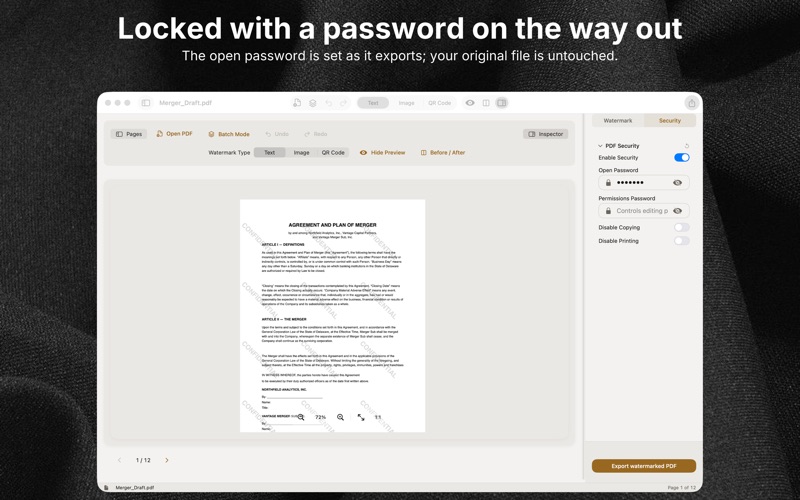
• The Disable Copying and Disable Printing switches do not restrict anything. Only the open password is real encryption, and it must be set together with a permissions password or the export refuses. Flattening removes selectable text, but that is a side effect, not a permission, and not security.
• Batch results are written beside each input; there is no output-folder picker, and a dropped folder is read one level deep.
• A template does not remember a logo file — you re-pick the image when you load it.
• It will not open a password-protected PDF and never asks for the password, including one it wrote itself.
• PDFs only, in and out. No signing, no redaction, no merging, no page editing — Preview does all of that. Recent documents are forgotten when you quit.

No account, no sign-in, no upload, no telemetry, no network entitlement at all — it works with the Wi-Fi off. Your source PDF is never modified; every export writes a new file.

One payment. macOS 14 or later, in 8 languages.